 Martillolaud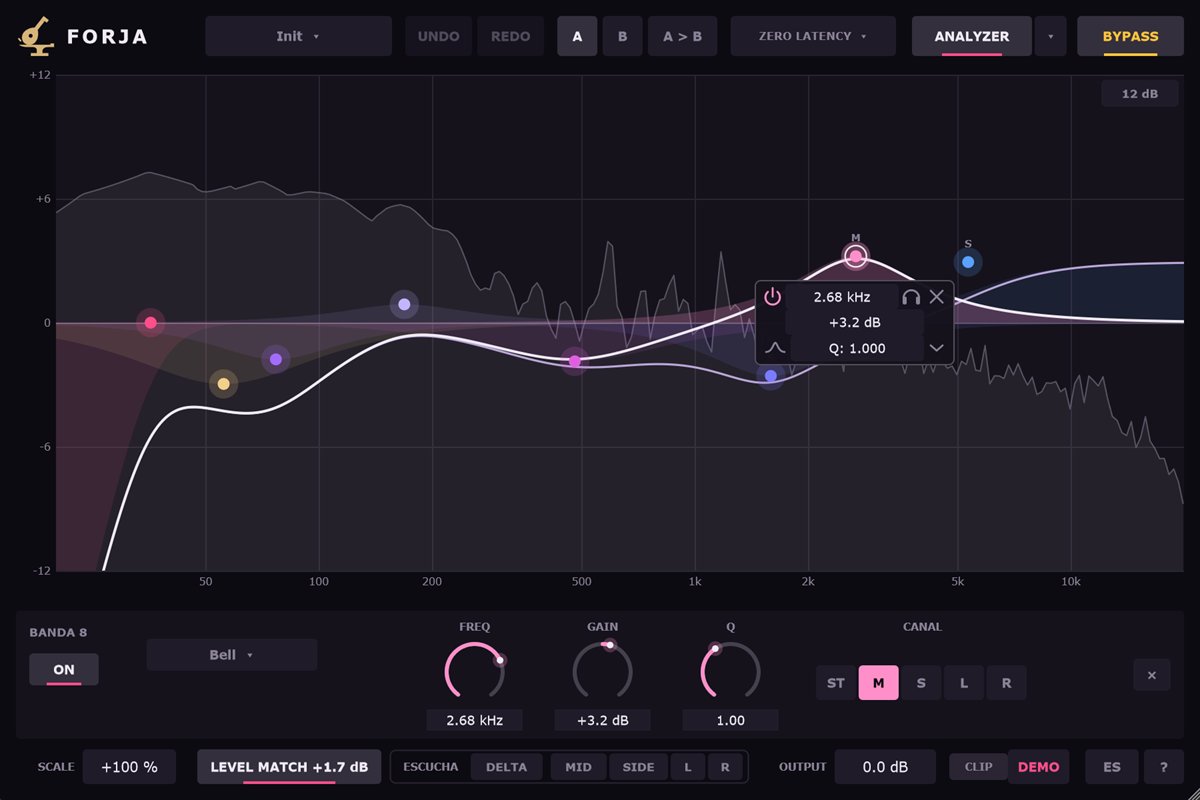
InstalaciónInstallation
- Descarga el zip de tu sistema y descomprímelo.
- Copia
Forja.vst3en la carpeta de plugins VST3:
WindowsC:\Program Files\Common Files\VST3· macOS/Library/Audio/Plug-Ins/VST3· Linux~/.vst3 - Abre tu DAW y vuelve a buscar plugins si no aparece. Forja está bajo el fabricante Martillolaud.
- Download the zip for your system and unzip it.
- Copy
Forja.vst3to your VST3 plugin folder:
WindowsC:\Program Files\Common Files\VST3· macOS/Library/Audio/Plug-Ins/VST3· Linux~/.vst3 - Open your DAW and rescan plugins if it does not show up. Forja is listed under the manufacturer Martillolaud.
Activar la licenciaActivating your license
Sin licencia, Forja funciona completo. Al abrir la ventana sale un aviso que se puede cerrar a los pocos segundos, una vez por instancia. Para quitarlo pulsa DEMO en la barra inferior y escribe el correo de la compra y la serie que te llegó. No hace falta internet. Cada plugin tiene su propia serie: la de Temple, Yunque o Pulso no vale para Forja.
Without a license Forja is fully working. Opening its window shows a notice you can close after a few seconds, once per instance. To remove it click DEMO in the bottom bar and enter your purchase email and the serial you received. No internet needed. Each plugin has its own serial: a Temple, Yunque or Pulso serial does not unlock Forja.
Crear y mover bandasCreating and moving bands
Pasa el ratón cerca de la curva: aparece un círculo con su frecuencia en el eje. Haz clic en él (o arrastra desde él) y nace una banda. El tipo depende de dónde la crees: en los extremos, cortes y shelves; en el centro, campanas.
Move the mouse near the curve: a circle shows up with its frequency on the axis. Click it (or drag from it) and a band is born. Its type depends on where you create it: cuts and shelves at the edges, bells in the middle.
- Arrastrar un punto
- Frecuencia y ganancia. Shift: ajuste fino.
- Rueda
- La Q; en los cortes, la pendiente.
- Doble clic
- Enciende o apaga la banda.
- Clic derecho
- Tipo, canal y borrar. Supr también borra la banda elegida.
- Varias a la vez
- Arrastra en un hueco para elegir varias con un recuadro: se mueven juntas. Un clic en un hueco quita la selección.
- Escuchar
- Shift + botón derecho mantenido sobre una banda: oyes solo su zona.
- Drag a point
- Frequency and gain. Shift: fine adjust.
- Wheel
- Q; on cuts, the slope.
- Double-click
- Turns the band on or off.
- Right-click
- Type, channel and delete. Delete also removes the selected band.
- Several at once
- Drag on an empty spot to box-select several: they move together. Click an empty spot to clear the selection.
- Listen
- Shift + hold the right button on a band: you hear only its range.
El botón de arriba a la derecha del gráfico elige su escala: ±3, ±6, ±12 o ±30 dB. Se guarda con la sesión.
The button at the top right of the graph sets its scale: ±3, ±6, ±12 or ±30 dB. It is saved with the session.
La bandaThe band
Junto al punto elegido (y al que tiene el ratón encima) sale su caja: encender ⏻, frecuencia, escucha 🎧, borrar ×, ganancia, tipo, Q y ▾ para tipo y canal. Los valores se arrastran o se escriben (2k, 350, 1,5k). La franja de abajo repite todo con perillas.
Next to the selected point (and the one under the mouse) its box shows up: power ⏻, frequency, listen 🎧, delete ×, gain, type, Q and ▾ for type and channel. Values can be dragged or typed (2k, 350, 1.5k). The strip below repeats everything with knobs.
- Tipos
- Bell, Low Shelf, High Shelf, Tilt (sube un lado y baja el otro alrededor de la frecuencia), Low Cut y High Cut (6 a 48 dB/oct) y Notch.
- Q
- Lo estrecha o ancha que es la banda. En los shelves, la forma del codo (hasta 2).
- Canal
- ST estéreo, M Mid, S Side, L izquierdo, R derecho. En una pista mono, Side no actúa.
- 🎧 Escucha
- Mantenlo pulsado para oír la zona de la banda, con su Q; arrástralo a los lados para recorrer la frecuencia mientras escuchas (Shift: fino). Dos barras ámbar marcan los bordes.
- Types
- Bell, Low Shelf, High Shelf, Tilt (raises one side and lowers the other around the frequency), Low Cut and High Cut (6 to 48 dB/oct) and Notch.
- Q
- How narrow or wide the band is. On shelves, the shape of the knee (up to 2).
- Channel
- ST stereo, M Mid, S Side, L left, R right. On a mono track Side does nothing.
- 🎧 Listen
- Hold it to hear the band's range, with its Q; drag sideways to sweep the frequency while listening (Shift: fine). Two amber bars mark the edges.
Modos de fasePhase modes
El menú de la cabecera elige cómo trabaja el ecualizador. Las instancias nuevas empiezan en Zero Latency; el modo se guarda con la sesión, y ni los presets ni A/B lo cambian.
The menu in the header picks how the EQ works. New instances start in Zero Latency; the mode is saved with the session, and presets and A/B leave it alone.
- Zero Latency
- Sin latencia y con muy poca CPU. Para casi todo, también en directo.
- Linear Phase
- Fase lineal: no cambia la fase entre frecuencias. 192 ms de latencia a 48 kHz, que el DAW compensa solo. Para buses y mezcla.
- Linear HQ
- Fase lineal de máxima precisión, exacta hasta en graves estrechos. 768 ms de latencia a 48 kHz. Para mastering.
- Zero Latency
- No latency and very little CPU. For almost everything, live included.
- Linear Phase
- Linear phase: no phase shift between frequencies. 192 ms latency at 48 kHz, compensated by your DAW. For buses and mixing.
- Linear HQ
- Highest-precision linear phase, exact even on narrow low bands. 768 ms latency at 48 kHz. For mastering.
En fase lineal puede aparecer pre-ringing: un eco suave justo antes de los golpes, sobre todo con cortes empinados en graves. Al cambiar de modo la salida se funde y, en lineal, se oye silencio durante la latencia.
Linear phase can cause pre-ringing: a soft echo just before hits, mostly with steep cuts in the lows. Switching modes fades the output and, in linear modes, you hear silence for the latency.
AnalizadorAnalyzer
La línea gris es la entrada y el relleno la salida; entre ambas, en rosa lo que Forja sube y en índigo lo que baja. Sube al instante y cae a la velocidad que elijas. En el ▾ de ANALYZER: resolución, velocidad de caída, tilt alrededor de 1 kHz (0 por defecto; 4,5 dB/oct es lo más parecido al oído), rango y ventana. Apagado no gasta nada.
The grey line is the input and the fill the output; between them, pink is what Forja raises and indigo what it lowers. It rises instantly and falls at the speed you choose. In the ANALYZER ▾: resolution, fall speed, tilt around 1 kHz (0 by default; 4.5 dB/oct is closest to the ear), range and window. Turned off it uses no CPU.
Barras de controlesControl bars
- Scale
- Cuánto de la curva se aplica: 100 % tal cual, 50 % la mitad, −100 % al revés. Para suavizar o exagerar un ajuste entero de una vez. No toca los cortes ni el notch.
- Level match
- Compensa sola la sonoridad que añade o quita la curva, medida a medio plazo como el oído; muestra cuánto compensa. Así comparas el color, no el volumen.
- Escucha
- DELTA: solo lo que Forja cambia. MID, SIDE, L, R: un solo canal por los dos altavoces. Encendidos, el marco del gráfico se pone ámbar y arriba se lee lo que oyes, para no olvidarlos al exportar.
- Output
- Ganancia de salida. Con LEVEL MATCH, es un ajuste sobre el nivel ya compensado.
- Clip
- Avisa si la salida pasa de 0 dB. Forja no limita: un ecualizador transparente no toca los picos.
- Bypass
- Señal sin procesar, con un fundido corto y la misma latencia, para comparar sin saltos.
- A / B
- Dos ajustes completos para comparar. A > B copia el actual al otro.
- Deshacer
- Ctrl+Z / Ctrl+Y.
- Presets
- Guarda los tuyos en
Documentos\Martillolaud\Forja\Presets. No tocan el bypass ni el modo. - ES / EN · ?
- Idioma de la ayuda y encender o apagar las ayudas al pasar el ratón.
- Scale
- How much of the curve is applied: 100 % as is, 50 % half, −100 % inverted. To soften or exaggerate a whole setting at once. Cuts and notch are left alone.
- Level match
- Makes up for the loudness the curve adds or removes, measured over the medium term like the ear, and shows how much. So you compare colour, not volume.
- Monitor
- DELTA: only what Forja changes. MID, SIDE, L, R: a single channel on both speakers. When on, the graph frame turns amber and the top shows what you hear, so you do not forget them when exporting.
- Output
- Output gain. With LEVEL MATCH it trims the already-matched level.
- Clip
- Warns when the output goes over 0 dB. Forja does not limit: a transparent EQ leaves peaks alone.
- Bypass
- Unprocessed signal with a short fade and the same latency, to compare without jumps.
- A / B
- Two complete settings to compare. A > B copies the current one to the other.
- Undo
- Ctrl+Z / Ctrl+Y.
- Presets
- Save your own to
Documents\Martillolaud\Forja\Presets. They leave bypass and mode alone. - ES / EN · ?
- Help language, and hover hints on or off.
La ventana se puede agrandar o achicar arrastrando la esquina; el tamaño se guarda con la sesión.
Resize the window by dragging its corner; the size is saved with the session.
En la pista de REAPEROn the REAPER track
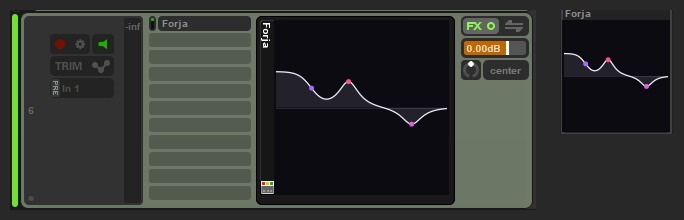
En REAPER, clic derecho sobre Forja en la cadena de efectos → Show embedded UI in TCP (o MCP, el mezclador). Sale la curva del EQ con la escala del gráfico y, si hay sitio, los puntos de las bandas en su color; en fase lineal lleva la marca LIN o HQ, y con BYPASS se ve atenuada. Si la pista tiene un solo Forja, un clic en la vista lo abre.
In REAPER, right-click Forja in the FX chain → Show embedded UI in TCP (or MCP, the mixer). You get the EQ curve on the graph's scale and, when there is room, the band points in their colours; in linear phase it carries a LIN or HQ mark, and with BYPASS it is dimmed. If the track has a single Forja, clicking the view opens it.
PreguntasQuestions
Sin bandas, ¿es la señal exacta?
With no bands, is it bit-identical?
Sí. Sin bandas activas (o todas a 0 dB) la salida es la entrada exacta, también con LEVEL MATCH. En fase lineal, la entrada retrasada la latencia.
Yes. With no active bands (or all at 0 dB) the output is the exact input, LEVEL MATCH included. In linear modes, the input delayed by the latency.
¿Qué modo uso?
Which mode should I use?
Zero Latency para casi todo. Fase lineal cuando la fase importa: graves de varios micros, buses en paralelo o mastering. Si oyes un eco antes del golpe, vuelve a Zero Latency o suaviza la pendiente del corte.
Zero Latency for almost everything. Linear phase when phase matters: multi-mic lows, parallel buses or mastering. If you hear an echo before the hit, go back to Zero Latency or ease the cut's slope.
Perdí mi serie
I lost my serial
Escríbeme a [email protected] con el correo de la compra.
Write to [email protected] with the email you bought with.